
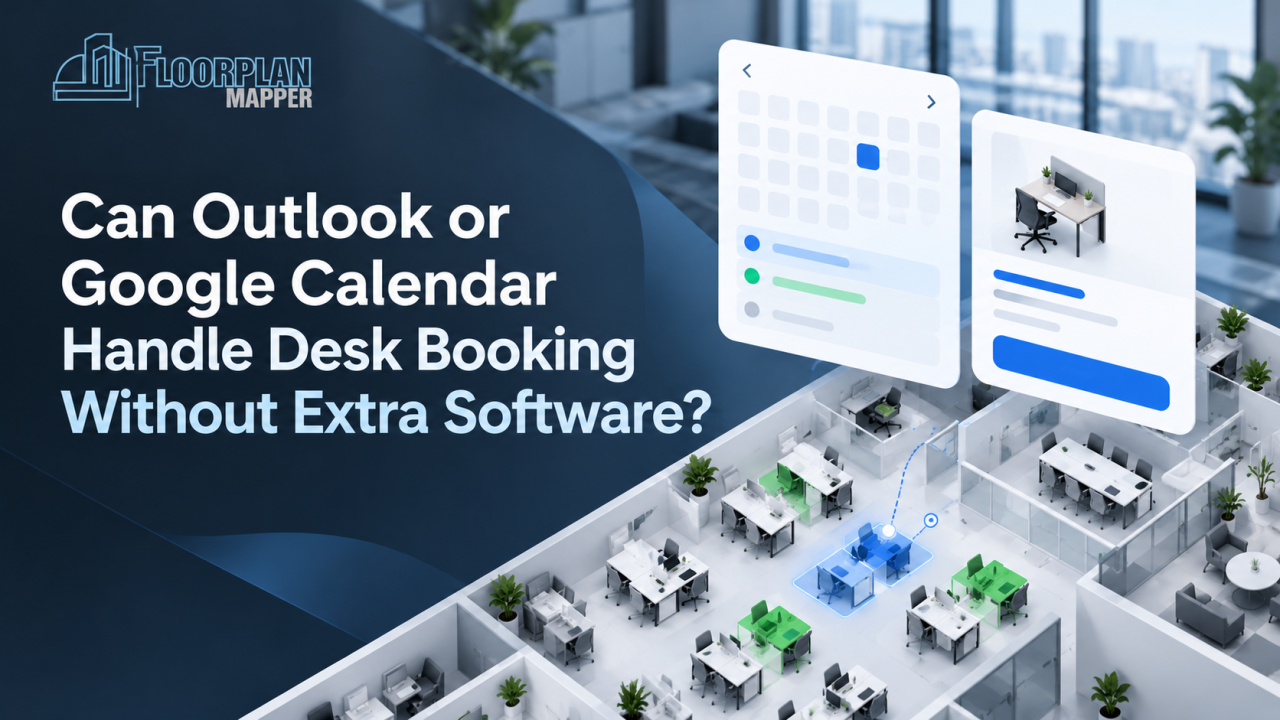
Yes. You can manage desk reservations using Microsoft Outlook or Google Calendar, but the available features and setup process are different. Outlook supports desk booking through Microsoft Places, while Google Calendar can reserve desks when they’re configured as shared resources. Both approaches can work for offices with fairly simple requirements.
The question is whether your employees only need to reserve a space or also need to know exactly where they’re sitting, which desks are available near their team, and who else is coming into the office.
Here’s how both calendar-based approaches work, what they cost, and when dedicated desk booking software becomes a better fit.
Key Takeaways
- Outlook supports desk booking through Microsoft Places, including shared desk pools and individual desk reservations.
- Google Calendar desk booking is possible by configuring desks as bookable resources through Google Workspace.
- Microsoft Places desk pools can be booked without an additional space license, but reserving individual desks requires suitable licensing.
- Calendar booking may be enough for smaller offices with simple seating requirements.
- Dedicated desk booking software is worth considering when employees need interactive floor plans, workplace resource locations, booking controls, and an easier way to find coworkers.
Can You Use Microsoft Outlook for Desk Booking?
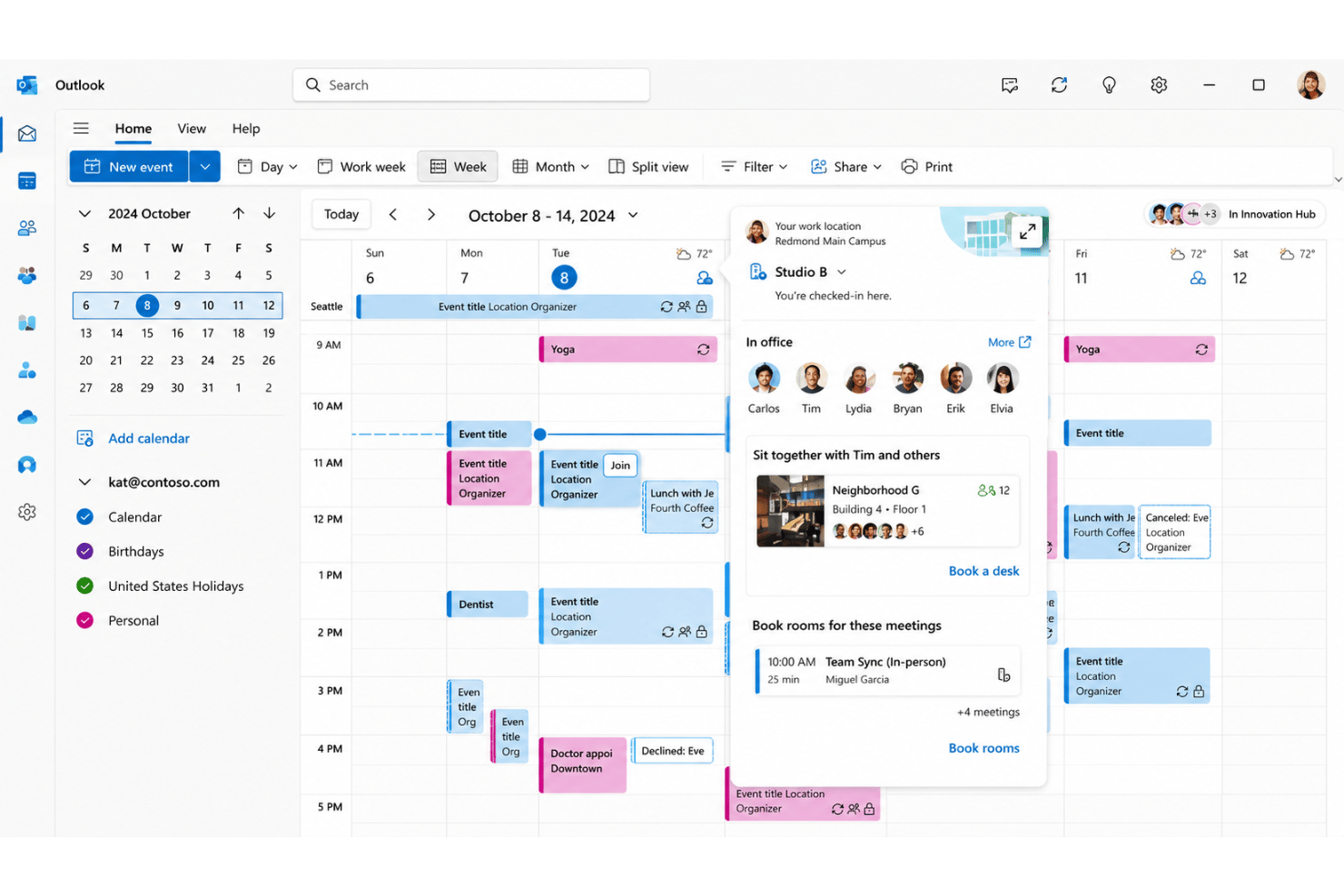
Yes. Desk booking with Outlook is supported through Microsoft Places, a workplace management service connected to Microsoft 365.
Microsoft Places allows organizations to configure office buildings, floors, desks, and shared workspaces. Employees can then make reservations through supported Outlook and Microsoft Teams experiences.
There are two main ways to reserve workspaces.
1. Book a Desk Pool
A desk pool is a group of shared desks managed as one bookable workspace.
For example, an office could configure a workspace called Marketing Zone with ten desks. Employees reserve a place in that zone without necessarily selecting one particular workstation.
If all ten available spaces have been reserved, additional requests can be declined.
This approach makes sense when employees don’t mind which desk they use within a specific office area.
2. Book an Individual Desk
Microsoft Places also supports reserving a specific desk.
Instead of booking any available seat in Marketing Zone, an employee can select Desk M-05.
Microsoft allows administrators to configure individual desks as reservable, drop-in, assigned, or unavailable.
This is useful for offices where employees need a particular workstation, perhaps because of its equipment, accessibility features, or proximity to teammates.
Important: Individual desk booking requires the appropriate Microsoft Teams Shared Space licensing. Microsoft changed its premium Places licensing model on April 1, 2026.
You can check the current requirements in Microsoft’s official Places licensing documentation.
How to Set Up Desk Booking in Outlook
Your Microsoft 365 administrator needs to configure the workplace before employees can start booking desks.
Here’s the basic process.
Step 1: Configure Office Buildings and Floors
Set up your office locations in Microsoft Places.
Organize the workplace by building, floor, and section so employees can find the correct location.
For example:
- Building: Headquarters
- Floor: Second Floor
- Section: Marketing
- Desks: M-01 through M-10
This structure helps the booking system connect each workstation to a physical location.
Step 2: Choose Between Desk Pools and Individual Desks
Decide how employees will use your shared seating.
If any desk within an area is acceptable, create a desk pool and configure its capacity.
If employees must choose an exact workstation, configure individual reservable desks and confirm licensing requirements.
Step 3: Configure Booking Permissions
Administrators can control which resources employees can book and apply supported reservation policies.
Before publishing the system, check that desk availability, permissions, and resource mailboxes are configured correctly.
Step 4: Book a Workspace Using Outlook
For traditional workspace or desk-pool reservations, the process generally works as follows:
- Open your Outlook calendar.
- Create a new meeting or calendar event.
- Open Room Finder and choose the relevant building.
- Select the workspace option, where available.
- Choose the booking date and time.
- Save the request and check the booking confirmation.
Microsoft recommends setting the event to show as Free for traditional workspace bookings so the desk reservation doesn’t unnecessarily block your meeting availability.
For individual desks, users with the correct Microsoft Places setup can select specific reservable desks through supported Places Finder experiences.
The exact interface depends on the Outlook version, tenant settings, and whether the organization has enabled Places Finder.
See Microsoft’s guide to booking a workspace for additional instructions.
Can Google Calendar Be Used for Desk Booking?
Yes. Google Calendar desk booking can work by treating a desk as a shared workplace resource.
Google Workspace allows administrators to create bookable resources such as meeting rooms, equipment, and other shared items.
A desk can be configured as one of those resources.
For example, an office with eight shared workstations could create resources named:
- Desk A-01
- Desk A-02
- Desk A-03
- Desk A-04
Employees can then reserve a desk by adding the appropriate resource to a Google Calendar event.
Google Calendar checks resource availability and can decline conflicting reservations.
However, this requires configuring the resources correctly. Google Calendar doesn’t provide the same dedicated desk-booking experience as a purpose-built workplace mapping application.
Google’s Calendar resource documentation explains how shared resources are created and managed.
How to Set Up Google Calendar Desk Booking
For organizations using Google Workspace, the basic setup looks like this:
Step 1: Open Google Workspace Admin Console
An administrator with the appropriate permissions should open the Buildings and resources section.
Step 2: Create Desk Resources
Add your shared desks as resources.
Use clear, consistent names and include useful location details, such as the building, floor, or department.
Step 3: Configure Availability and Access
Make the resources available to the appropriate employees and check the booking settings.
Step 4: Reserve a Desk
An employee creates a Google Calendar event, selects the relevant resource, and sends the reservation request.
Step 5: Confirm the Reservation
Check whether the resource accepted the booking. A desk appearing on a calendar invitation does not necessarily mean the reservation was successful.
For a very small team using regular Google Calendar instead of managed Workspace resources, a shared calendar for each desk is another option.
However, that manual approach requires employees to follow the rules themselves. A regular shared calendar should not be assumed to provide the same automatic conflict prevention and administrative controls as a properly configured Google Workspace resource.
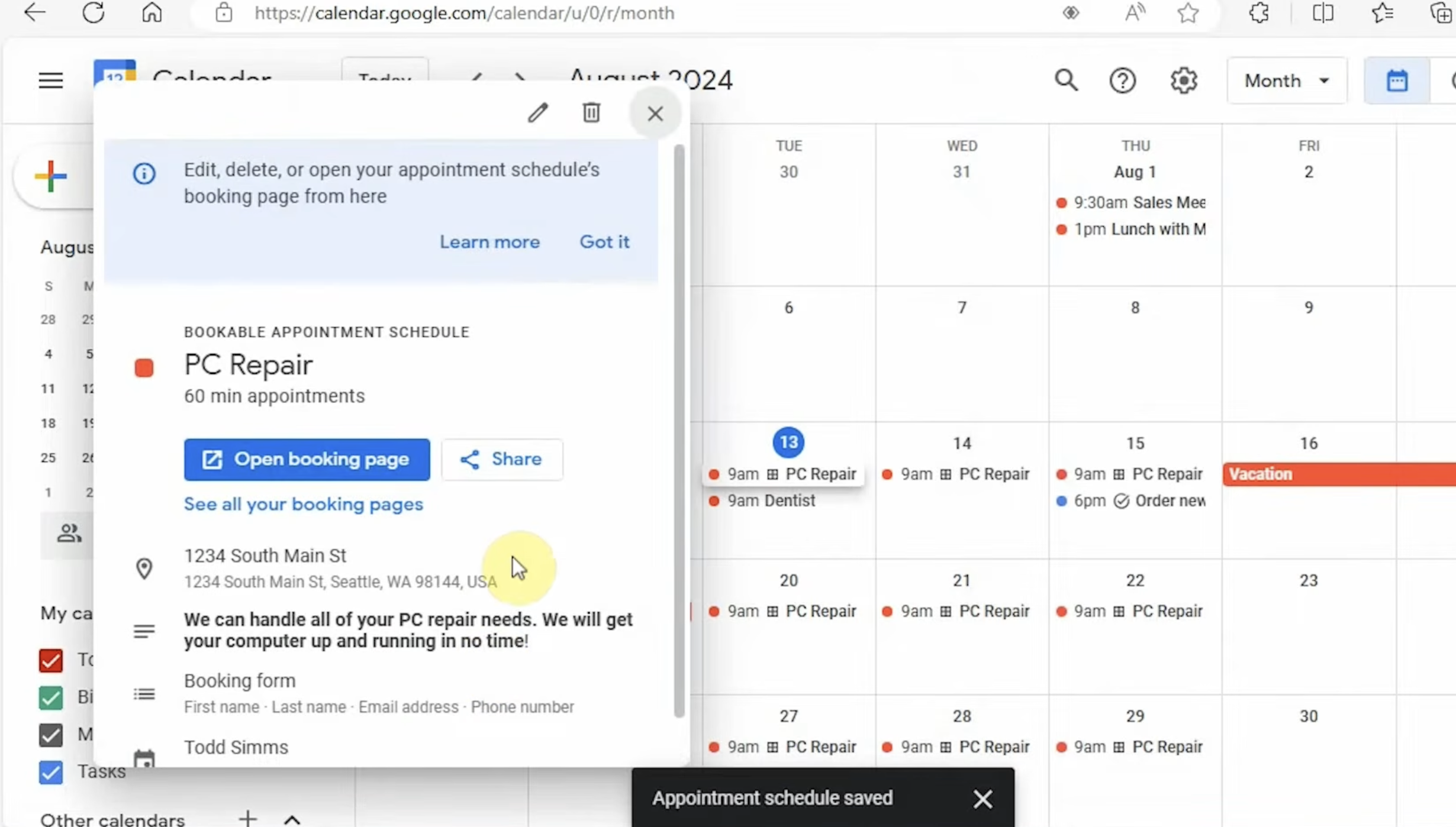
Can Google Calendar’s Appointment Scheduling Feature Book Desks?
Google Calendar’s appointment schedules are designed mainly to let people book time with an individual or service.
They aren’t a dedicated desk inventory system.
You could create an appointment-based workaround for a workspace, but Google Workspace resource calendars are the more appropriate starting point for booking shared office equipment or desks.
Likewise, setting your Google Calendar working location to Office indicates where you plan to work. It does not, by itself, reserve a specific desk.
Outlook vs Google Calendar vs Dedicated Desk Booking Software
All three approaches can support workspace reservations, but their capabilities differ.
| Feature | Outlook + Microsoft Places | Google Calendar Resources | Dedicated Desk Booking Software |
| Reserve shared workspaces | Yes | Yes, when configured | Yes |
| Reserve a specific desk | Yes, with required licensing | Yes, as an individual resource | Generally supported |
| Prevent booking conflicts | Yes | Yes, with properly configured resources | Generally supported |
| Interactive floor plans | Available through Microsoft Places map setup | Not a native resource-calendar feature | Common in visual booking platforms |
| Find coworker locations | Supported in Microsoft Places | Working-location visibility, not a native seating map | Depends on platform |
| Check-in and no-show controls | Supported, with applicable configuration/licensing | Requires additional processes or tools | Depends on platform |
| Setup requirements | Microsoft 365 administration and Places configuration | Google Workspace resource administration | Vendor-specific setup |
| Additional cost | Depends on current licenses and features | Depends on existing Workspace plan and requirements | Depends on software pricing |
The real difference is how much workplace information employees need before making a reservation.
If someone only needs to know whether Desk A-04 is available on Tuesday, a resource calendar may be enough.
But consider a hybrid employee asking:
“Is anyone from my team coming in on Tuesday, and can I book a desk beside them?”
Now the employee needs more than a free or busy calendar entry.
They need location information, seating context, and a clear picture of the office.
What About Microsoft Places Floor Plans?
Microsoft Places also supports interactive workplace maps.
Its map setup uses Indoor Mapping Data Format (IMDF) files, including GeoJSON files representing building levels, spaces, and other map features. Preparing and matching these files to workplace data can require additional technical work.
That matters when comparing setup requirements.
A business with existing PDF or CAD office drawings should investigate how much preparation is required to turn those drawings into usable maps within its preferred software.
Microsoft provides more detail in its Places floor-plan configuration documentation.
When Is Desk Booking Without Extra Software Enough?
You may not need dedicated software if your workplace has a simple seating arrangement.
For example, consider a small office with ten shared desks where employees don’t need special equipment and are comfortable sitting anywhere.
A shared calendar or Microsoft Places desk pool may handle the main requirement.
Calendar-based booking is particularly reasonable when:
- Employees only need basic availability and reservations.
- Desk locations are easy to recognize.
- The workplace has limited seating changes.
- A small number of administrators can maintain the setup.
- Existing Microsoft or Google tools already meet the organization’s needs.
If the process is working well, adding another system may create unnecessary expense.
The goal should be to solve the booking problem, not introduce software simply because it’s available.
Where Calendar-Based Desk Booking Becomes Difficult
The limits usually become clearer as an organization introduces more floors, shared seating rules, and changing employee schedules.
Employees Don’t Know Where a Desk Is
A calendar might show that Desk B-17 is available.
But where is B-17?
Is it beside the finance team? Is there a monitor? Is it in a quiet area or next to a busy corridor?
Calendar descriptions can help, but employees may still have to check a separate seating chart.
Teammates Want to Sit Together
A hybrid employee may travel to the office mainly to work with colleagues.
They might need to know who is attending on a particular day and which desks are available nearby.
Microsoft Places offers workplace presence and mapping features for this use case. A basic Google resource-calendar setup provides less spatial context.
Workplace Layouts Keep Changing
Companies move teams, add equipment, rename departments, and change seating arrangements.
If office maps and calendars are maintained separately, administrators may need to update several records whenever something changes.
This creates more opportunities for outdated location information.
Desk Reservations Don’t Match Actual Usage
An employee might reserve a desk and then work from home.
Unless the organization uses a check-in process, booking data alone won’t show whether that desk was actually occupied.
Microsoft Places supports check-in and automatic release options, subject to its current licensing rules. Dedicated systems may also offer reminders, release rules, and usage reports.
Booking Policies Become More Detailed
Some offices need rules for booking windows, recurring reservations, team areas, cancellations, or no-shows.
These requirements are easier to manage when the booking system supports the organization’s actual policy.
For implementation advice, read our desk booking best practices for hybrid teams.
A Practical Example: 40 Employees Sharing 22 Desks
Consider a hypothetical company with 40 employees who work from the office on different days.
The office has 22 shared desks spread across three departments.
With a basic calendar approach, employees can check and reserve workstations. However, they may need a separate office map to understand where each desk is located and how close it is to their teammates.
With Microsoft Places, the company can configure desk resources and use supported workplace mapping and team-presence features. It must also account for setup and individual-desk licensing requirements.
With Floor Plan Mapper, employees can browse an interactive floor plan, check desk availability, locate mapped coworkers, and reserve a workstation directly from the office layout.
None of these approaches is automatically the best choice for every organization.
The decision depends on how much employees need to know about a workstation before reserving it and how much ongoing administration the workplace team can manage.
When Does Dedicated Desk Booking Software Make Sense?
A dedicated system becomes more valuable when desk booking needs to work alongside office navigation, seating arrangements, employee directories, and workplace resources.
Consider looking beyond basic calendars when employees frequently ask where desks are located, teams struggle to coordinate office days, or administrators spend too much time fixing reservations manually.
The software should make these tasks easier, without forcing employees to maintain another disconnected set of workplace records.
That’s the problem Floor Plan Mapper is designed to solve.

How Floor Plan Mapper Works With Outlook and Google Calendar
Floor Plan Mapper is an interactive office mapping and desk booking platform built on Geographic Information Systems (GIS) technology.
Rather than starting with a calendar list, it starts with your actual office layout.
Organizations can upload existing CAD, PDF, or image floor plans and create searchable maps showing desks, employees, rooms, departments, and workplace resources.
Employees can then:
- View available desks directly on an office map.
- Choose a particular workstation before arriving.
- Book desks for a few hours, a full day, or recurring office days.
- Find mapped coworkers and identify available seating nearby.
- Add their desk reservations to Outlook or Google Calendar.
- Receive booking reminders and follow the organization’s check-in process.
Floor Plan Mapper also supports Microsoft 365 and Active Directory employee information integration, alongside SSO, SCIM, and API options.
Calendar integration allows employees to keep booking details in familiar scheduling tools. Organizations should confirm their exact synchronization requirements rather than assume every calendar event automatically creates or updates a reservation in both systems.
Why Its Pricing Model Matters
Floor Plan Mapper’s cloud subscription pricing is based on the number of floor plans rather than the number of employees or desks.
The published starting cloud plan is $28 per month for one or two floor plans, with unlimited employees, desks, rooms, and user accounts. Confirm current booking-module requirements and pricing before subscribing.
This makes the platform worth evaluating for companies with many employees sharing a relatively small number of office floors.
If you’re comparing options, explore hot desk booking software with interactive floor plans to see how workplace reservations can work alongside Outlook and Google Calendar.
You can also review our affordable desk booking software comparison to understand how different software pricing models work.
Frequently Asked Questions
Is desk booking free with Outlook?
Microsoft Places desk-pool reservations are available with eligible Microsoft 365 licenses without an additional space license. However, individual desk reservations and certain premium capabilities require appropriate space licensing. Check your organization’s existing licenses before assuming every feature is included.
Can Google Calendar prevent double desk bookings?
Yes, properly configured Google Workspace resources can automatically manage availability and decline conflicting reservation requests. Ordinary shared calendars don’t necessarily offer the same protection because users may have permission to create overlapping events.
Can I reserve the same desk every week?
Yes, recurring calendar events and supported desk-booking systems can help manage repeat reservations. However, recurring bookings depend on resource availability and administrator policies, so confirm that each occurrence is accepted.
Can employees see who is in the office using Outlook?
Yes. Microsoft Places provides workplace presence and work-plan features that help employees see who plans to be in the office. Access and visibility depend on user settings and the organization’s configuration.
Is dedicated desk booking software necessary for a small office?
Not always. If a small team only needs basic reservations and everyone knows where the desks are, a calendar-based setup may be enough. Dedicated software becomes more useful when visual seating, coworker search, detailed policies, or centralized workplace mapping are important.
Does Floor Plan Mapper replace Outlook or Google Calendar?
No. Floor Plan Mapper can complement existing calendar systems by adding interactive floor plans, workplace information, and visual desk reservations. Employees can continue using familiar calendar tools while managing their physical workspace through the mapped interface.
So, Should You Use Outlook, Google Calendar, or Desk Booking Software?
Start with the tools your company already has.
If you’re using Microsoft 365, test Microsoft Places. If you’re using Google Workspace, try a small resource-calendar setup.
Check whether employees can reserve the desks they need, find those desks easily, and manage schedule changes without repeatedly asking someone for help.
If the booking process works, you may not need anything else.
But if your workplace also needs searchable seating maps, employee locations, equipment mapping, and visual reservations, Floor Plan Mapper’s hot desk booking software offers a practical next step.
You can start with a 7-day free trial and evaluate how the system fits your existing office layouts and calendar workflow.
Sources and Further Reading

